Docker for Windows 使用入门
Docker for Windows 使用入门
- Docker for Windows 使用入门
- 检查Docker Engine,Compose和Machine的版本
- 浏览应用程序并运行示例
- PowerShell设置 tab completion
Docker for Windows 使用入门
欢迎来到Docker for Windows!
Docker是用于创建Docker应用程序的完整开发平台,Docker for Windows是在Windows系统上开始使用Docker的最佳方式。
如果你没有安装Docker for Windows,请阅读这篇文章:Windows 10 安装 Docker for Windows
检查Docker Engine,Compose和Machine的版本
启动您最喜爱的shell(cmd.exe,PowerShell或其他)来检查docker和docker-compose的版本,并验证安装。
```plain text PS C:\Users\Docker> docker –version Docker version 17.03.0-ce, build 60ccb22
PS C:\Users\Docker> docker-compose –version docker-compose version 1.11.2, build dfed245
PS C:\Users\Docker> docker-machine –version docker-machine version 0.10.0, build 76ed2a6
1
2
3
4
5
6
7
8
9
10
11
12
13
14
15
16
17

复制

# 浏览应用程序并运行示例

接下来的几个步骤将通过一些例子。 这些只是建议您在系统上测试Docker的方法,检查版本信息,并确保docker命令正常工作。

1.打开一个shell(cmd.exe,PowerShell或其他)。

2.运行一些Docker命令,例如docker ps,docker version和docker info。

这是在powerhell中运行的docker ps的输出。 (在这个例子中,没有容器正在运行。)

```plain text
PS C:\Users\jdoe> docker ps

CONTAINER ID        IMAGE               COMMAND             CREATED             STATUS              PORTS               NAMES
复制
以下是docker version的命令输出示例。
```plain text PS C:\Users\Docker> docker version Client: Version: 17.03.0-ce API version: 1.26 Go version: go1.7.5 Git commit: 60ccb22 Built: Thu Feb 23 10:40:59 2017 OS/Arch: windows/amd64
Server: Version: 17.03.0-ce API version: 1.26 (minimum version 1.12) Go version: go1.7.5 Git commit: 3a232c8 Built: Tue Feb 28 07:52:04 2017 OS/Arch: linux/amd64 Experimental: true
1
2
3
4
5
6
7
8
9
10
11
12
13
14
15
16
17
18
19
20
21
22
23
24
25
26
27
28
29
30
31
32
33
34
35
36
37
38
39
40
41
42
43
44
45
46
47
48
49
50
51
52

复制

以下是docker info的命令输出示例。

```plain text
PS C:\Users\Docker> docker info
Containers: 0
 Running: 0
 Paused: 0
 Stopped: 0
Images: 0
Server Version: 17.03.0-ce
Storage Driver: overlay2
 Backing Filesystem: extfs
 Supports d_type: true
 Native Overlay Diff: true
Logging Driver: json-file
Cgroup Driver: cgroupfs
Plugins:
 Volume: local
 Network: bridge host ipvlan macvlan null overlay
Swarm: inactive
Runtimes: runc
Default Runtime: runc
Init Binary: docker-init
containerd version: 977c511eda0925a723debdc94d09459af49d082a
runc version: a01dafd48bc1c7cc12bdb01206f9fea7dd6feb70
init version: 949e6fa
Security Options:
 seccomp
  Profile: default
Kernel Version: 4.9.12-moby
Operating System: Alpine Linux v3.5
OSType: linux
Architecture: x86_64
CPUs: 2
Total Memory: 1.934 GiB
Name: moby
ID: BM4O:645U:LUS6:OGMD:O6WH:JINS:K7VF:OVDZ:7NE4:ZVJT:PSMQ:5UA6
Docker Root Dir: /var/lib/docker
Debug Mode (client): false
Debug Mode (server): true
 File Descriptors: 13
 Goroutines: 21
 System Time: 2017-03-02T16:59:13.417299Z
 EventsListeners: 0
Registry: https://index.docker.io/v1/
Experimental: true
Insecure Registries:
 127.0.0.0/8
Live Restore Enabled: false
复制
上面的输出是例子。 您的输出,例如docker版本和docker信息,将取决于您的产品版本(例如,在安装较新版本时)。
3.运行docker run hello-world来测试从Docker Hub拉一个图像并启动一个容器。
```plain text PS C:\Users\jdoe> docker run hello-world
Hello from Docker. This message shows that your installation appears to be working correctly.
To generate this message, Docker took the following steps:
- The Docker client contacted the Docker daemon.
- The Docker daemon pulled the “hello-world” image from the Docker Hub.
- The Docker daemon created a new container from that image which runs the executable that produces the output you are currently reading.
- The Docker daemon streamed that output to the Docker client, which sent it to your terminal. ```
复制
4.尝试更有意义的东西,并使用此命令运行Ubuntu容器。
```plain text PS C:\Users\jdoe> docker run -it ubuntu bash
1
2
3
4
5
6
7
8
9
10
11
12
13
14
15
16

复制

这将下载ubuntu容器image并启动它。 以下是在powerhell中运行此命令的输出。

```plain text
PS C:\Users\jdoe> docker run -it ubuntu bash

Unable to find image 'ubuntu:latest' locally
latest: Pulling from library/ubuntu
5a132a7e7af1: Pull complete
fd2731e4c50c: Pull complete
28a2f68d1120: Pull complete
a3ed95caeb02: Pull complete
Digest: sha256:4e85ebe01d056b43955250bbac22bdb8734271122e3c78d21e55ee235fc6802d
Status: Downloaded newer image for ubuntu:latest
复制
输入exit以停止容器并关闭powerhell。
5.使用此命令启动Dockerized Web服务器:
```plain text PS C:\Users\jdoe> docker run -d -p 80:80 –name webserver nginx
1
2
3
4
5
6
7

复制

这将下载nginx容器image并启动它。 以下是在powerhell中运行此命令的输出。

```plain text
PS C:\Users\jdoe> docker run -d -p 80:80 --name webserver nginxUnable to find image 'nginx:latest' locallylatest: Pulling from library/nginxfdd5d7827f33: Pull completea3ed95caeb02: Pull complete716f7a5f3082: Pull complete7b10f03a0309: Pull completeDigest: sha256:f6a001272d5d324c4c9f3f183e1b69e9e0ff12debeb7a092730d638c33e0de3eStatus: Downloaded newer image for nginx:latestdfe13c68b3b86f01951af617df02be4897184cbf7a8b4d5caf1c3c5bd3fc267f
复制
6.将您的Web浏览器指向http:// localhost 以显示起始页面。
(由于您指定了默认HTTP端口,因此无需在URL的末尾追加:80)。

7.运行docker ps时,您的网络服务器正在运行,以查看容器上的详细信息。
```plain text PS C:\Users\jdoe> docker psCONTAINER ID IMAGE COMMAND CREATED STATUS PORTSNAMESdfe13c68b3b8 nginx “nginx -g ‘daemon off” 3 days ago Up 45 seconds 0.0.0.0:80->80/tcp, 443/tcp webserver
1
2
3
4
5
6
7
8
9
10
11
12
13
14
15
16
17
18
19
20
21
22
23
24
25
26
27
复制
8.停止或移除容器和镜像。
nginx网络服务器将继续在该端口上的容器中运行,直到您停止和/或删除该容器。 如果要停止Web服务器,请键入:docker stop webserver,并使用docker start webserver重新启动它。
要使用单个命令停止并删除正在运行的容器,请键入:docker rm -f webserver。 这将删除容器,而不是nginx镜像。 您可以列出本地镜像与docker镜像。 您可能想要保留一些镜像,以便您不必再从Docker Hub再次拉出。 要删除不再需要的镜像,请使用docker rmi,后跟镜像ID或镜像名称。 例如,docker rmi nginx。
# PowerShell设置 tab completion
如果您希望为Docker命令提供方便的tab completion,可以按如下方式安装posh-docker PowerShell模块。
先决条件说明: 根据您的设置,您可能需要NuGet软件包管理器,以便您可以获得安装的提示。 确保您具有以管理员权限运行PowerShell的权限。
1.启动 PowerShell(以管理员身份运行)。
为此,请搜索PowerShell,右键单击,然后选择以管理员身份运行。
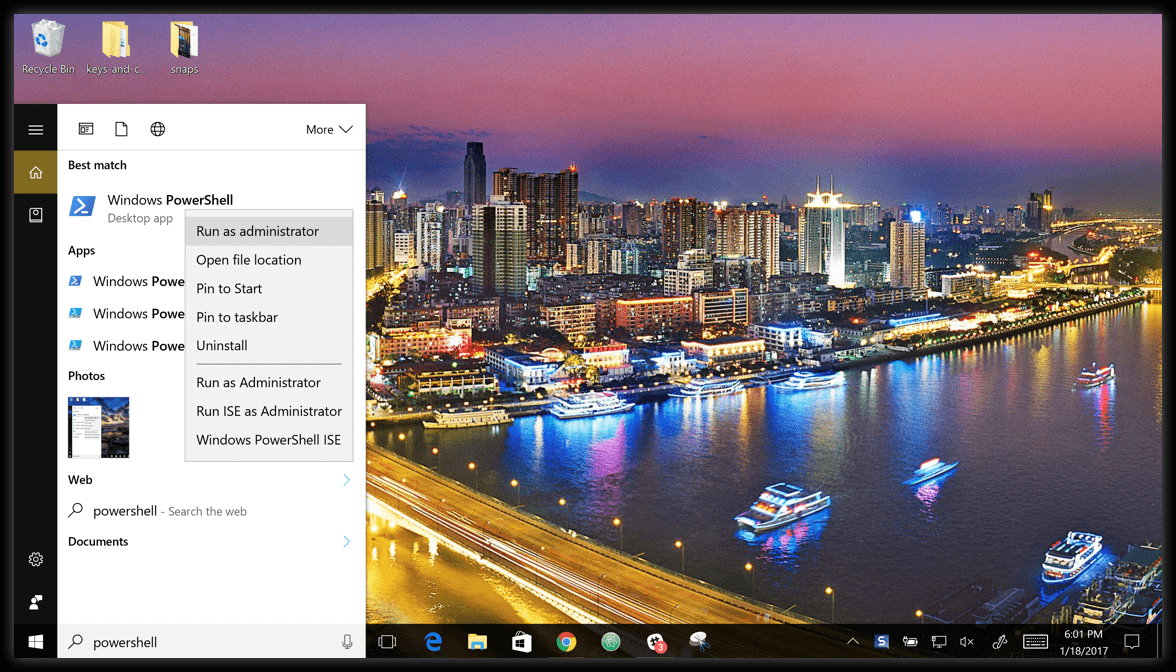
当系统询问您是否允许此应用更改您的设备时,单击是。
2.设置脚本执行策略,允许由受信任的发布者签名的下载脚本在您的计算机上运行。 为此,请在PowerShell提示符下键入。
```plain text
Set-ExecutionPolicy RemoteSigned
复制
要检查策略设置是否正确,请运行get-executionpolicy,这将返回RemoteSigned。
3.要安装posh-docker PowerShell模块以自动完成Docker命令,请键入:
```plain text Install-Module posh-docker
1
2
3
4
5
6
7

复制

或者,仅为当前用户安装模块,请键入:

```plain text
Install-Module -Scope CurrentUser posh-docker
复制
剩下的的有时间在翻译。
https://docs.docker.com/docker-for-windows/#set-up-tab-completion-in-powershell